Thursday, July 14, 2011

Enabling Drag & Drop and Add / Edit Data for SQL Calendar in Oracle Application Express 4.1

Step 1: Click on the Create Page Button

Step 2: Select the Calendar Option

Step 3: Select SQL Calendar

Step 4: Just Select the Defaults

Step 5: Let us take the most common table for this Example ie EMP, Let the calendar source be

select ROWID,
EMPNO,
ENAME,
HIREDATE
from EMP


Step 6: Select ROWID as primary key and select Date & Time option in the following page with ENAME as display column and HIREDATE as Date Column.
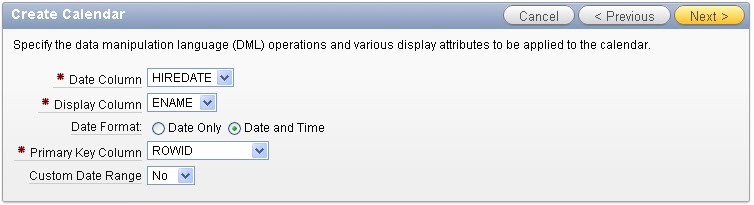


Step 6: Select the following options in the next page, keeping in mind the Source table in SQL is EMP we chose EMP as the table for which a form page need to be created with Add/Edit/Delete Option.


Step 7: Select the buttons / options need to be added in the Form page to be created. By default all the three options will be enabled Add/ Edit/ Delete


Step 8: Click Next and Click on the Finish button to create the Calendar Page.

Step 9: Run the Page now try and Drag & Drop Data, oops! does not happen........

Must be wondering where is the Drag & Drop option shown, Don't worry will answer it, Drag & Drop option will be shown while Creating Easy Calendar but not for SQL Calendar, because the SQL Calendar can have "Select sysdate,'apex 4.1' desc from dual which is valid SQL, but impossible to generate a Drag & Drop process for that, so how will I enable Drag & Drop.

The following post Calendar creation process steps need to be followed to make Calendar Draggable.

Step 1: Edit Calendar Page.

Step 2: Click on Create Process of Type PL/SQL and execution point will be On-Demand, let's name it Calendar_Drag_Drop


Step 3: Enter the following code for the process

declare
l_date_value varchar2(32767) := apex_application.g_x01;
l_primary_key_value varchar2(32767) := apex_application.g_x02;
begin
update EMP set HIREDATE = to_date(l_date_value,'YYYYMMDD HH24MISS')
where ROWID = l_primary_key_value;
end;

The above code is actually updating the Date column of the Calendar so that the Data can be moved in the Calendar Grid.


Step 4: Click on Create Process button

Step 5: Click on Edit Page > Edit Calendar > Calendar Attributes

Step 6: Click on "Drag & Drop" on top of the screen of Calendar Attributes page

Step 7: Select the Process Created under Process and if you want to enable Authorization for Drag & Drop select your Authorization and Apply Changes.


Step 8: Run the Page (make sure that EMP Table has data to be displayed in the Calendar)

Step 9: You should be able to Drag & Drop Employee name around the Calendar Grid.

Step 10: Click on the Empty Date Grid a popup will be opened to add a new record on EMP and click on the Employee name to edit the Data.

Thursday, September 2, 2010

Calendar Inline Datepicker and Dynamic Actions

There is a way to technique to display google like Calendar in Apex where you select the start date and end date from the DatePicker and automatically the Calendar refreshes.

Let me explain the step by step process of how to achieve this.

1. Create a Calendar with Partial Page Refresh and include Custom Calendar as well.
2. Create two jquery based datepicker items (for example P1_SD and P1_ED), both having date format YYYYMMDD.
3. Create Dynamic Action named refresh_calendar, should be having the following properties
Event : Change
Selection Type : Item
Item : P1_SD
Action
Action : Execute Javascript Code
Code : apex.widget.calendar.ajax_calendar('C','same',$v('P1_SD'),$v('P1_ED'));
4. Create another Dynamic Action duplicating Step 3, but for selection item P1_ED.
5. Delete "Monthly","Daily","Weekly".
6. Run the Page and Select Start Date using DatePicker, should be seeing the Calendar getting refreshed, trying selecting end date from the second Datepicker should be seeing the Calendar refresh automatically.
7. Click on next and previous to see difference of days between start date and end date getting skipped.
8. So a single view of calendar is used for Day,Week and Month.

Click here for the Demonstration Application

Wednesday, June 23, 2010

Apex 4.0 is released

Oracle Application Express 4.0 one of the featured packed releases in the recent past. The Download is available in OTN http://www.oracle.com/technology/products/database/application_express/index.html

jQuery Date Picker with Time in Apex 4.0

Worked on the jQuery Datepicker with time feature in Apex 4.0. One of the interesting addition is adding Time picking functionality with the jQuery Date Picker. Apex 4.0 have better Date Picker with various options which otherwise not possible with old date picker.

Options like year selection, month selection, multiple month display, internationalization, minimum date, maximum date restriction etc and very handy features.

Overall i can say the new jquery Date Picker gels well with Oracle application Express 4.0

Try out the feature others with apex.oracle.com, now running with Apex 4.0

Thursday, August 27, 2009

Apex Calendar more more & more

Custom Calendar, Ajax based data handling & Drag Drop Calendar it's all what i am working on, have a big sigh of relief when i see this work. Have much more to do..

Apex in Audit Vault

Now Application Express in Oracle Database Audit Vault. The complete Transformation to APEX is faster than expected. It's all because of RAD tool Oracle Application Express.

Apex Presentation at Chennai,Bangalore & Hyderabad

There is nothing greater than hearing the feedback directly from the Customer. The Presentation at Bangalore, Chennai & Hyderabad are awesome and found interesting. Very excited to see some of the Application which clients built using Apex.

I am surprised how Oracle Application Express is popular in India. The Audience from Hyderabad are the best among the other cities much informed technically both within the product and overall.

I love city of Hyderabad, no more city of Biriyani, I call it City of Oracle Application Express Growth. I can see a big future for Oracle Application Express in India.